
Featured Products
-
Sale!

-
Sale!

-
Sale!

-
Sale!

-
Sale!

-
Sale!

-
Sale!

-
Sale!


Macro photography on a Budget? Yes – It can be done. And Melissa of Melissa Brewer Photography will teach you how in today’s fun post teaching you macro photography on a budget.
Hey everyone! This is a fun photography technique called “poor man’s” macro. I don’t know about you but I LOVE macro close up photography. It’s just so fun and brings things into a whole new perspective. However, I can’t justify going out and buying a macro lens. It just doesn’t have a place in my business. Never fail though, there’s a way around it for us “frugal” photographers.
First, let’s talk technical. You’re going to need a d-slr for this and a prime lens. By prime lens I mean it can’t zoom in and out. Also, it must have the f-stop controls on the lens. The lens I always use for this is my trusty 50mm. It never fails me!
Now, to do poor man’s macro all you have to do is, take your lens off, turn it around, and hold it in place. Yep. That’s it. Well, almost.
Hey there Angie, could you please take the 50mm lens off my camera.
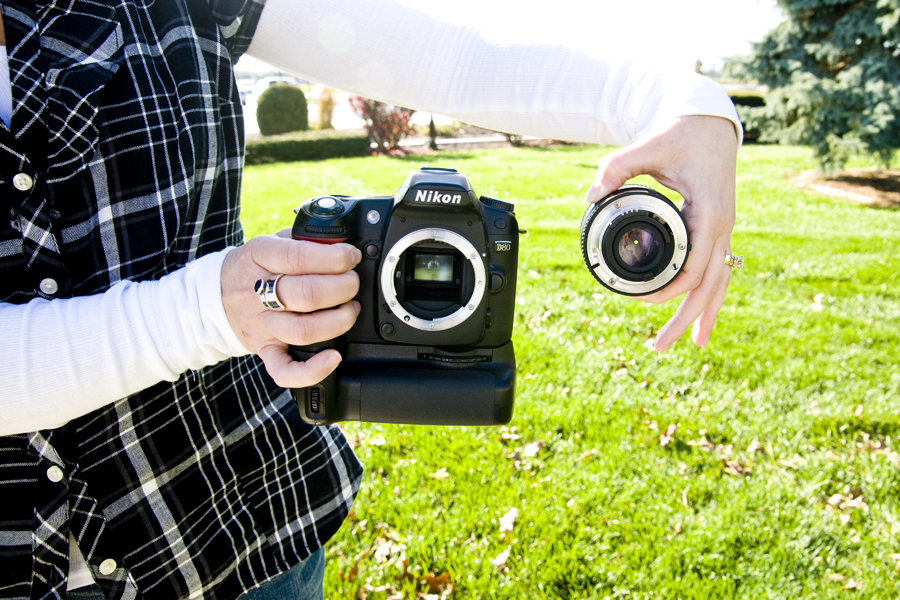
Thanks dear, now turn the lens around and show all the people how to hold it the “right” wrong way.
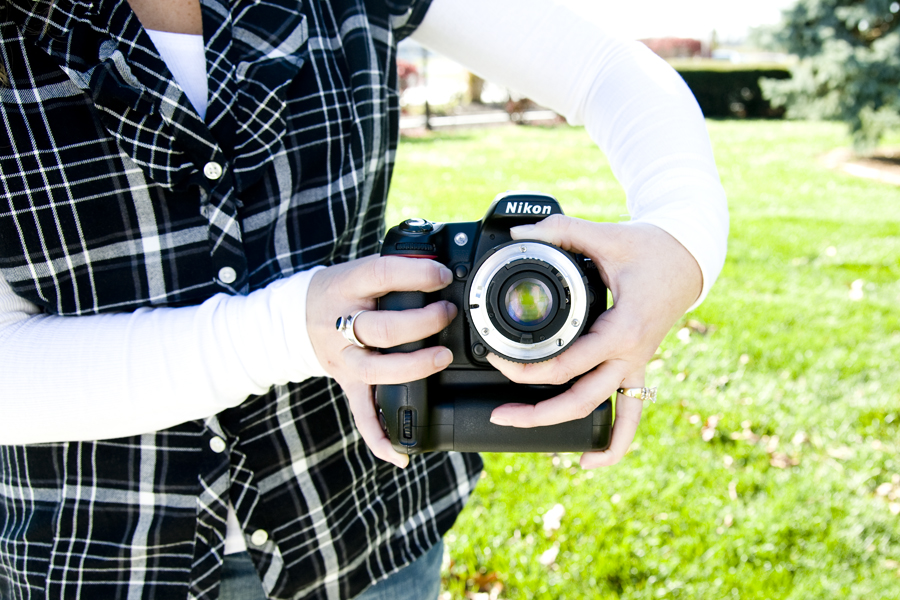
Isn’t she great. Let’s move on.
You now have a macro lens. Before you start shooting you need to adjust your f-stop on your lens to where you want it. I find a good place is around f4. For your shutter speed you’re going to want something kinda quick like 1/125 or higher. We want a pretty quick speed because of how we are going to focus. Now that our lens is backwards we can’t just use our focus ring and we definitely can’t auto focus. What you have to do is get really close to your object and then slowly, I repeat SLOWLY, move forward and backward until the image is in focus. The best thing to do is just hold your shutter down as you move forward and back because you gain and lose the focus so quickly.
Now that you’ve got the shot the image must be processed. Well, if you want to go for a soft look you won’t need to but, to really get them sharp they’re going to have to be processed. Here’s an image SOOC (straight out of camera).
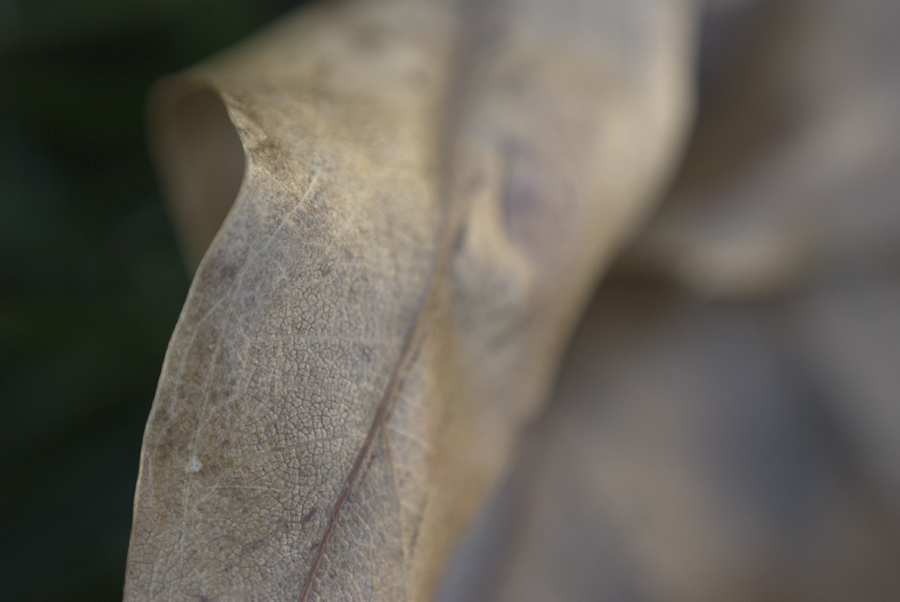
Of course, we can make it look better than this in camera by getting our exposure right but, the image will be lacking a lot of contrast and it will be very soft. When processing my poor man’s macro images I generally just use Lightroom or camera raw in Photoshop. I bring the exposure up, add some black, lots of contrast, and plenty of added clarity. Then, when I open the image up in Photoshop, I always run a high pass sharpen. It really helps make the lines pop! So, here’s the same image after it’s been processed.
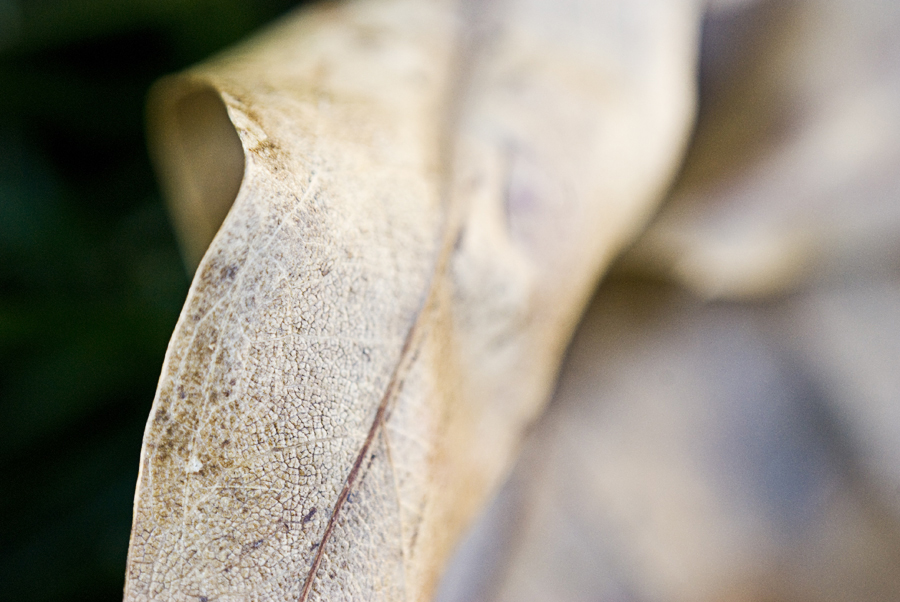
Much better!
Poor man’s macro is a great tool to know about and you can come up with a lot of different looks with this one technique.
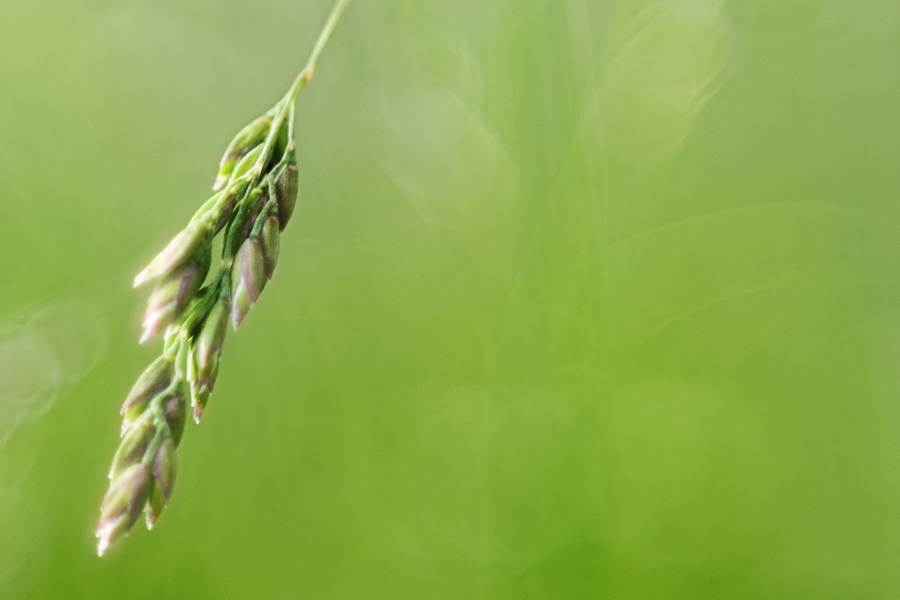
You can get super soft/dreamy images.
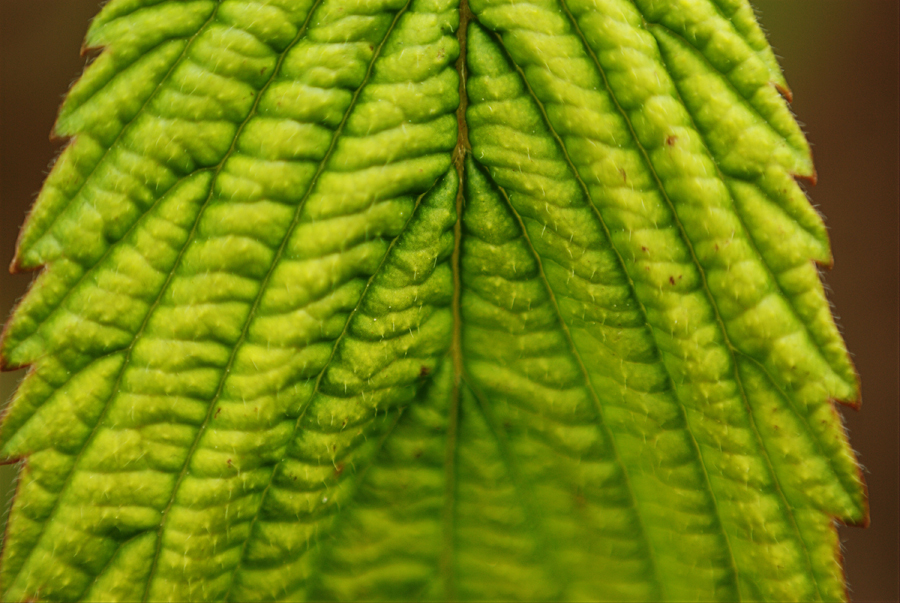
You can get super sharp detail images.
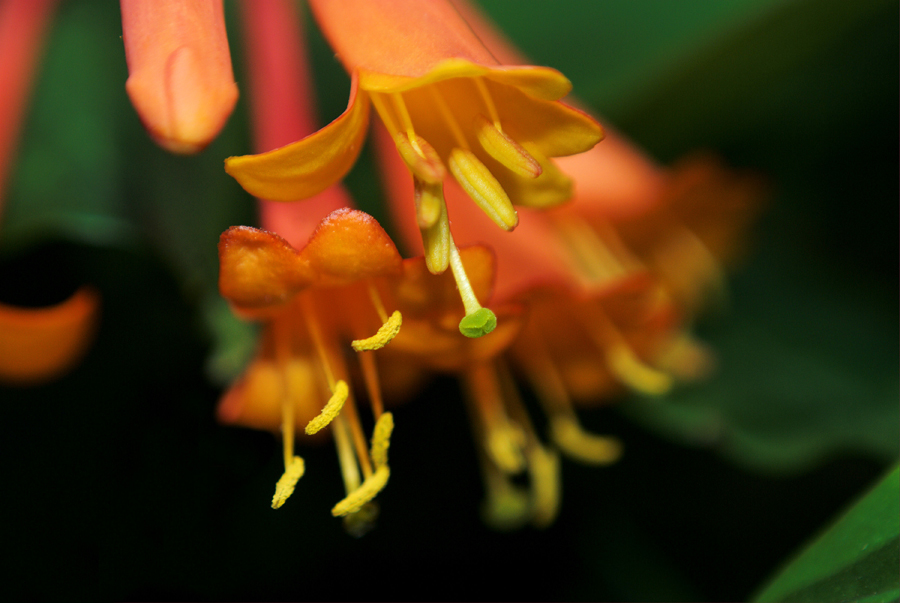
You can see tiny little flowers and objects like you’ve never seen them before.
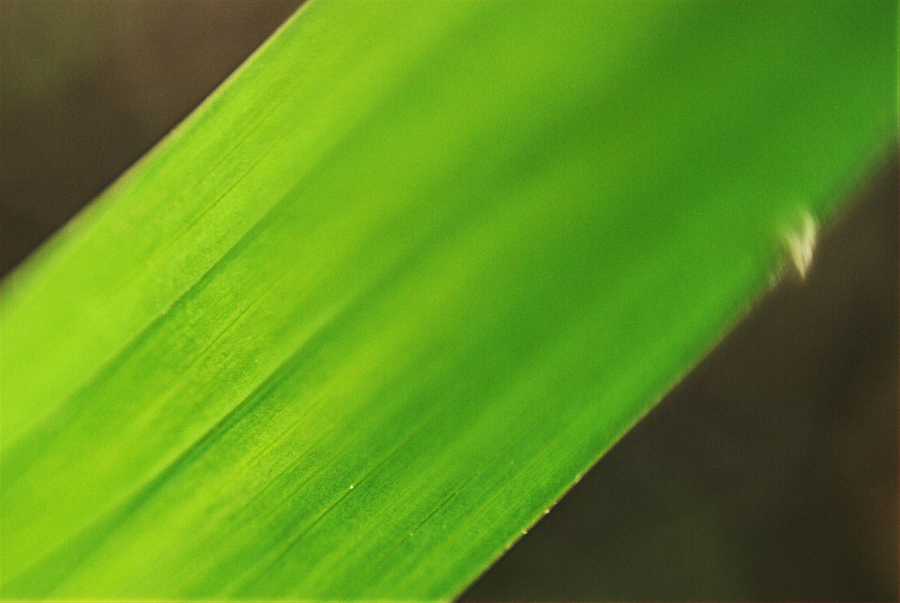
You can also get some great abstract shots.
Another great thing to do with poor man’s macro images is to put textures on them. They completely transform them. You can go from “Oh cool” to “Oh, is that a painting?”.

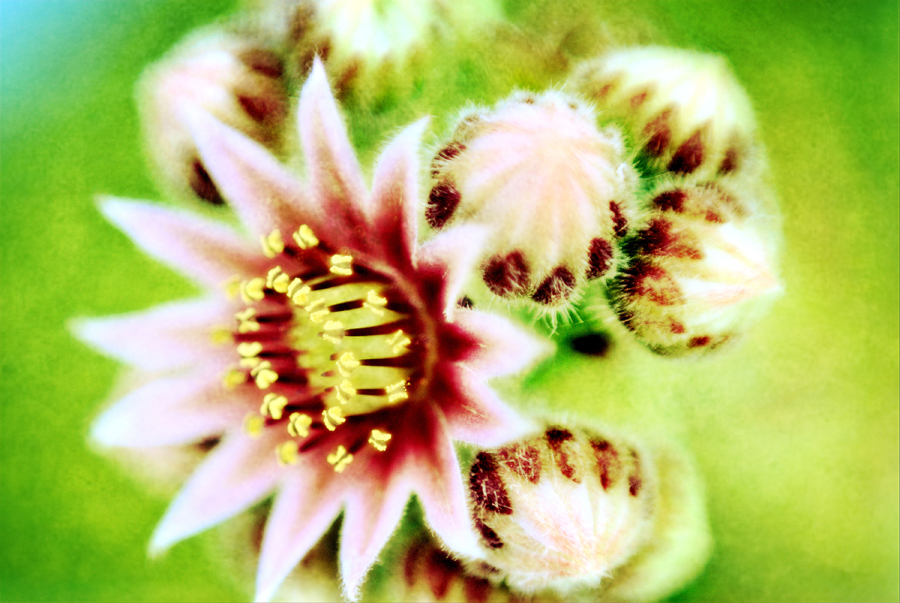
So, one final note before I go. Yes, you can get dust into your camera when doing this so I don’t advise doing this somewhere windy or really dusty. Yes, you may need to clean off your lens afterwards before putting it back on your camera. Yes, it will take a minute to get a hang of. Yes, you will get addicted for a while. Yes, you can shoot things other then flowers and leaves. In fact, I encourage you to do so. Try to find things with lots of texture or abstract designs like rope, tires, or carpet. Last but not least, don’t be afraid to get down on your belly and look at the world from a whole new perspective!
And most of all have fun!

No Comments
Leave a Comment
You must be logged in to post a comment.













Recent Posts









My favorite flowers are the stargazer lilies. Since the weather didn’t cooperate, I misted the flower with a spray bottle. This was taken with my Canon 50mm 1.8 lens.
Great photos! Macro wildlife photogrraphy is my #1 passion! 🙂
I’m trying to comment with a photo but it isn’t showing up…
Amy, make sure to resize your photo 1st. Not sure why else it would not show. Comments are moderated too due to spam. So remember that in case you thought it just would not post.
I used a x3 macro filter duct-taped to the kit lens with my Nikon D3000. The filter was a different size and tape is cheaper than a new filter.As it was, I was practically inhaling the feather. It’s not the electron-microscope look I was after, but I’m happy with it.
I took this @ my Mom’s and I can’t for the life of me remember what was behind it but I will have to say I love how it gave it a nice clean background =) I think the biggest thing in Macro is ensuring your focal point is clear. It is so easy to have your focus off when really close. I have also found that getting down for a bugs eye view works best (not that I am an expert in any way). 😉
One more..
Love to see a post on nature photography…macro no less! I am getting a new macro lens in the next couple months, but I still take pics of flowers with the lens I have right now. Thanks for the info and the great shots!
Got this lovely Mum from a grocery store–the weather had been really bad, so I set up my ‘indoor studio’ consisting of a small, adjustable IKEA table and two Clip on task lamps (Walmart). I had my Nikon D60 on a tripod and used my Tamron 70-300 zoom/macro. I did just a little ACR cleanup and applied PWA and MCP actions to finish.
I love my macro lens! I don’t use it that often but I do bust it out atleast once per wedding to do ring shots. Fun!
I have a Sigma 70-300mm lens that I absolutely love! When I use it for macro shots, I switch the lens to manual focus instead of auto. It makes all the difference!
Here’s another one I took the first day I had my Tamron 70-300. We were out walking after lunch and it landed on my husband’s pant leg (thus the ‘fabricy’ background)
Thanks, I had already resized it to the correct size but I didn’t realize it’d take extra time before it was posted (moderated). Glad to see others posting too! Sorry for my typo in my 1st comment…
the rose was shot with a canon 5d. i shot it in shutter priority at ISO 200, 1/160 of a second with an f stop of 6.3.
Example of my macro on a budget. This is Foam Flower taken with the Raynox M-250(around $57) attached to the 50mm 1.4.
Face to Face – smiling !!
This was taken with my Pentax 100mm 2.8. A tiger lilly blooming in my front yard. Macro brings to the eye the beauty that is in the small details.
I used my Nikon 60mm macro with my Nikon D700. Manuel focus brings much greater success!!Shot at 1/200 of a sec at f5.6 a little deeper than usual because I wanted more detail in focus.Kim Klaussen texture.