
Featured Products
-
Sale!
 Essential Photoshop Actions
Makeup Toolkit Premium Photoshop Action
Original price was: $79.00.$57.00Current price is: $57.00. -
Sale!
 Essential Photoshop Actions
Fusion™ Photoshop Actions
Original price was: $79.99.$58.00Current price is: $58.00. -
Sale!
 Essential Photoshop Actions
Bag of Tricks™ Photoshop Actions Set
Original price was: $69.99.$51.00Current price is: $51.00. -
Sale!
 Essential Photoshop Actions
Newborn Necessities™ Newborn Baby Editing Photoshop Actions Set
Original price was: $39.99.$29.00Current price is: $29.00. -
Sale!
 Essential Photoshop Actions
All in the Details™ Photoshop Actions Set
Original price was: $69.99.$51.00Current price is: $51.00. -
Sale!
 Essential Photoshop Actions
Complete Workflow™ Photoshop Actions Set
Original price was: $49.99.$36.00Current price is: $36.00. -
Sale!
 Essential Photoshop Actions
Inspire™ Photoshop Actions
Original price was: $99.99.$72.00Current price is: $72.00. -
Sale!
 Essential Photoshop Actions
Portrait Suite Frequency Separation Photoshop Action
Original price was: $63.99.$47.00Current price is: $47.00.

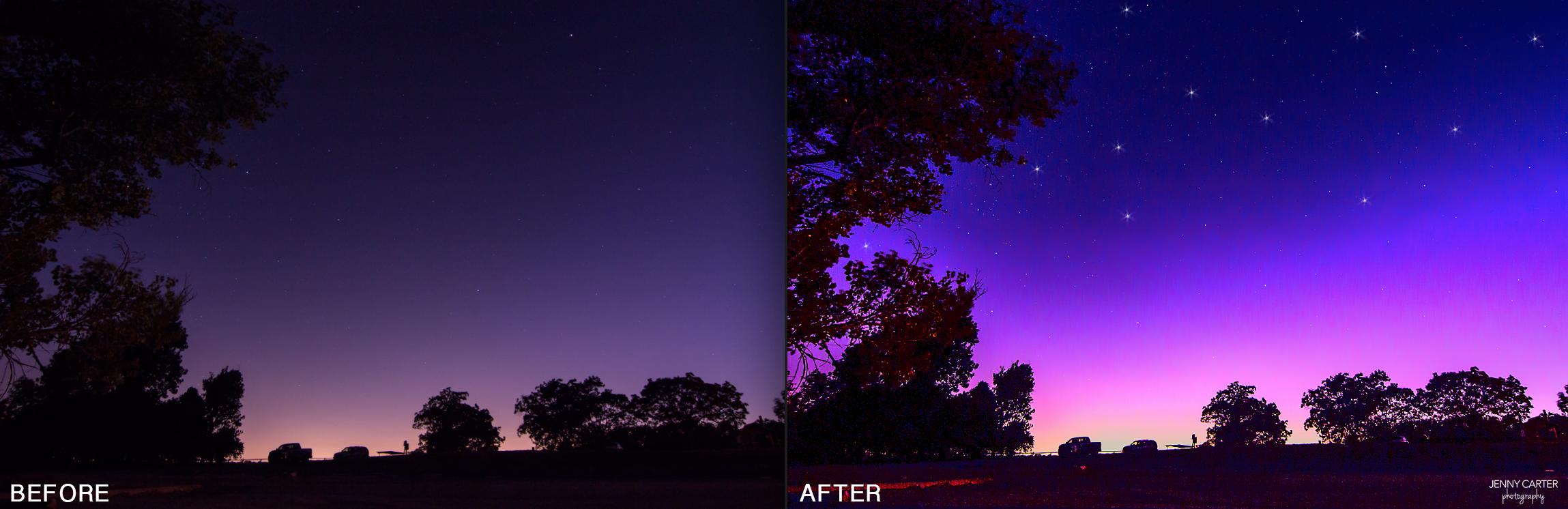
There are many reasons why I love editing in Photoshop. One of them is to have fun being creative. In this tutorial I’m going to show you how to take an average silhouette sunset picture, to a lively and colorful picture in just a few simple steps.
First, lets start with camera settings. This picture was taken (in RAW format) at: 20.0 sec; f/8; ISO 1000 using an 11-16mm wide angle lens set at 11mm.
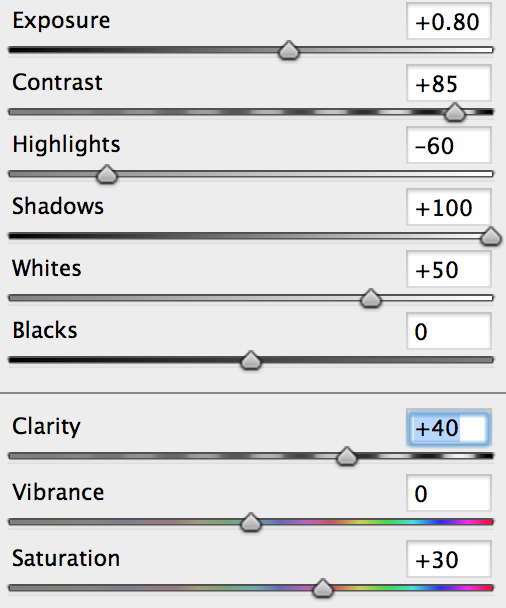
When you open it up in Camera Raw, you have many editing opportunities to adjust the settings. For the above picture, I used the settings below. There is no “right or wrong” settings here – it’s up to your personal preference. For this picture I wanted a bright and funky look so I kicked up the saturation and contrast. If I was going for a more realistic look, I would tone it down.
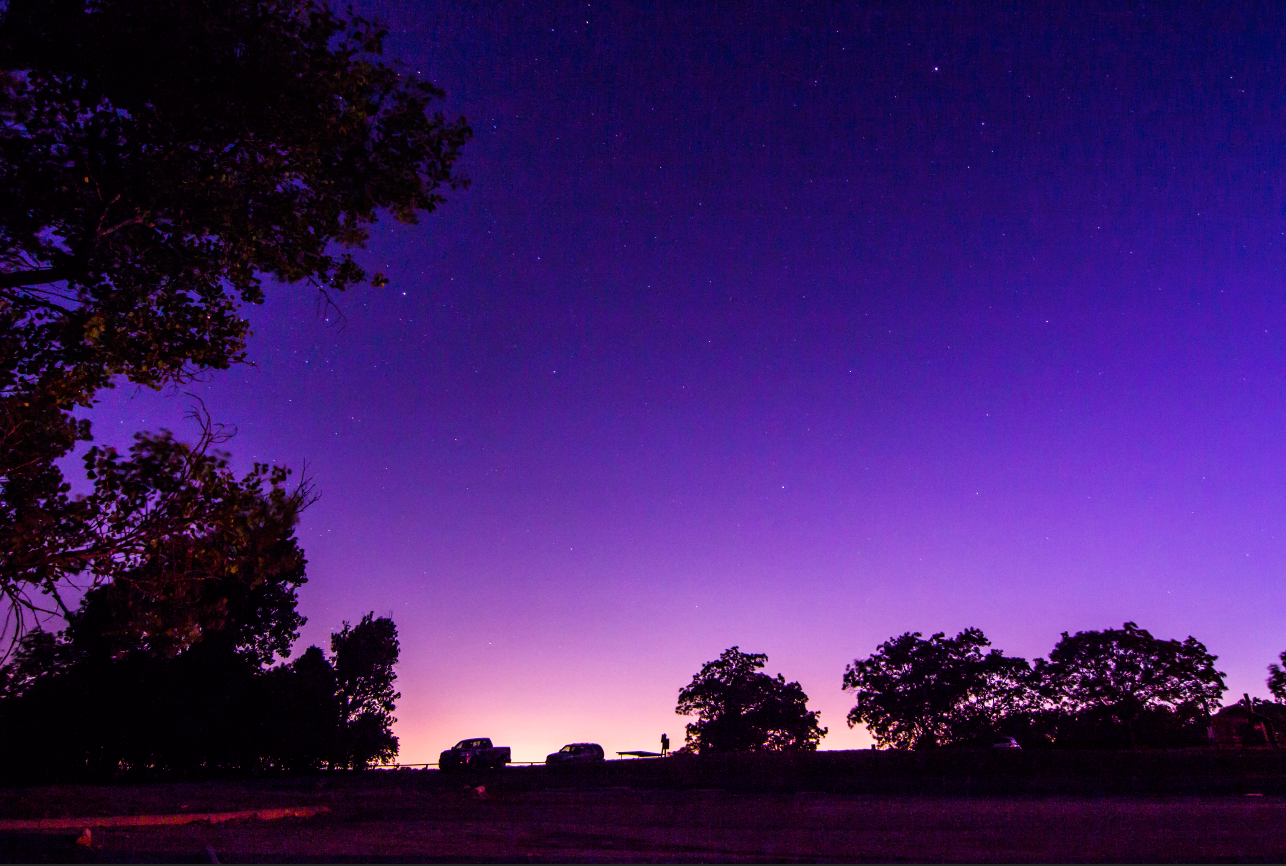
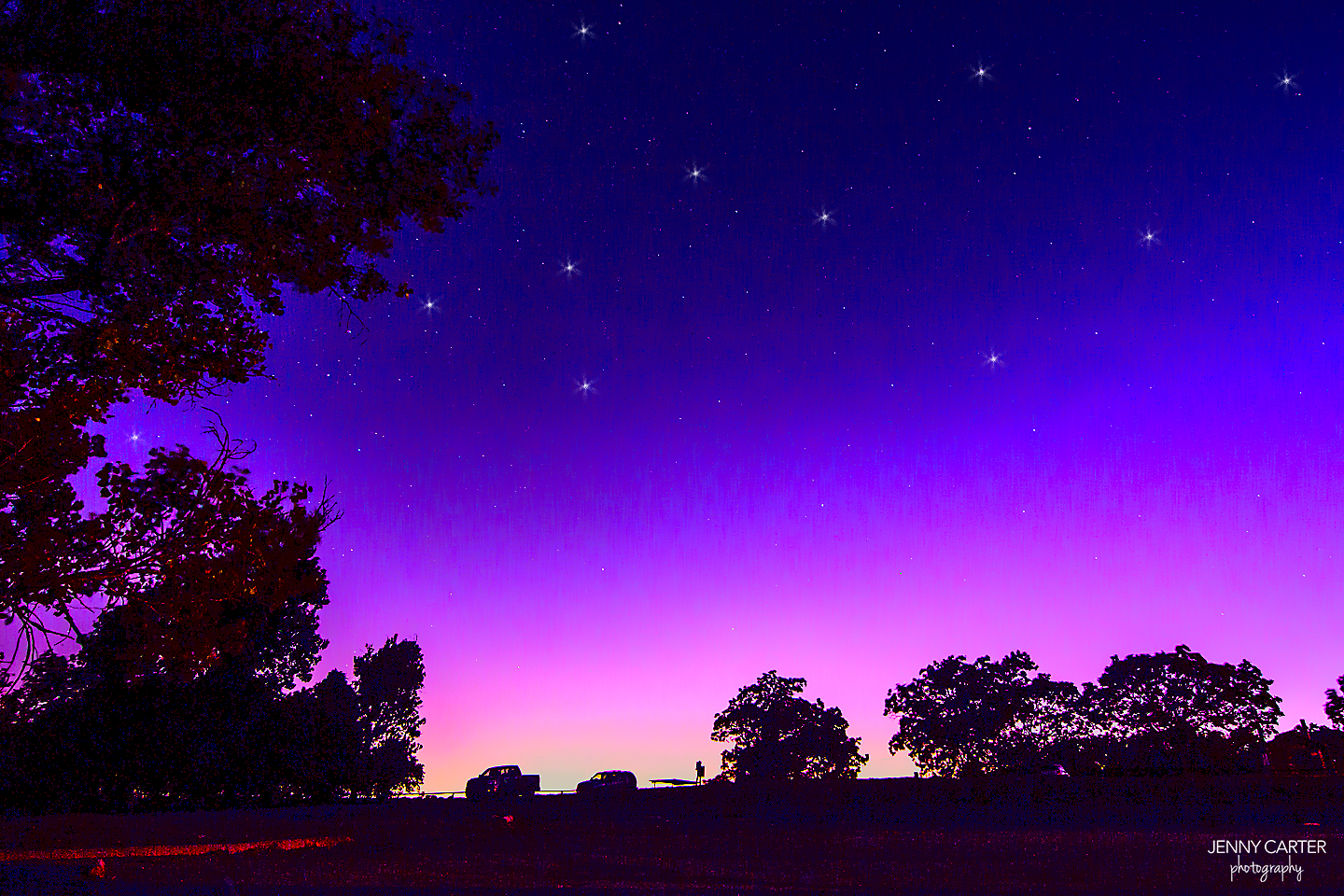
This is how my picture looked after making those adjustments. I thought it looked okay but I knew it was missing something. I knew exactly what it needed to make it really pop. I opened it up in Photoshop and using MCP Actions – Summer Solstice, applied “Color Carnival” to the sky at 58%. Yes – this is what I had in mind!
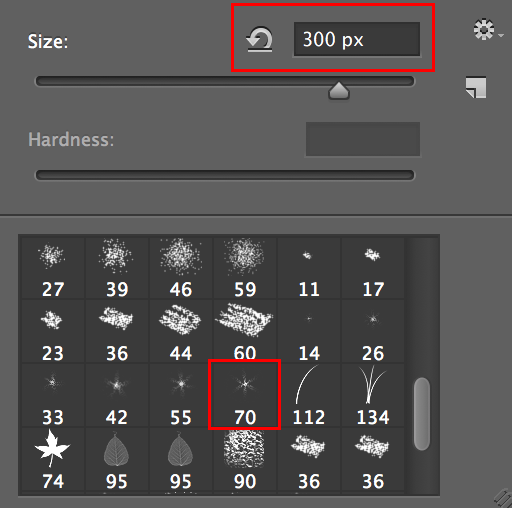
For the final touch I added a few stars using a default “star” brush and adjusted the size to 300. I created a new layer, set the foreground color to white and added a handful of stars.
Finally, I ran the “Just Right Sharp” action which makes it the perfect size for sharing with all of my friends on social media.
Jenny Carter is a portrait and landscape photographer based out of Dallas, Texas. You can find her on Facebook and Instagram.

Recent Posts








