
Featured Products
-
Sale!
 Essential Photoshop Actions
Makeup Toolkit Premium Photoshop Action
Original price was: $79.00.$57.00Current price is: $57.00. -
Sale!
 Essential Photoshop Actions
Fusion™ Photoshop Actions
Original price was: $79.99.$58.00Current price is: $58.00. -
Sale!
 Essential Photoshop Actions
Bag of Tricks™ Photoshop Actions Set
Original price was: $69.99.$51.00Current price is: $51.00. -
Sale!
 Essential Photoshop Actions
Newborn Necessities™ Newborn Baby Editing Photoshop Actions Set
Original price was: $39.99.$29.00Current price is: $29.00. -
Sale!
 Essential Photoshop Actions
All in the Details™ Photoshop Actions Set
Original price was: $69.99.$51.00Current price is: $51.00. -
Sale!
 Essential Photoshop Actions
Complete Workflow™ Photoshop Actions Set
Original price was: $49.99.$36.00Current price is: $36.00. -
Sale!
 Essential Photoshop Actions
Inspire™ Photoshop Actions
Original price was: $99.99.$72.00Current price is: $72.00. -
Sale!
 Essential Photoshop Actions
Portrait Suite Frequency Separation Photoshop Action
Original price was: $63.99.$47.00Current price is: $47.00.

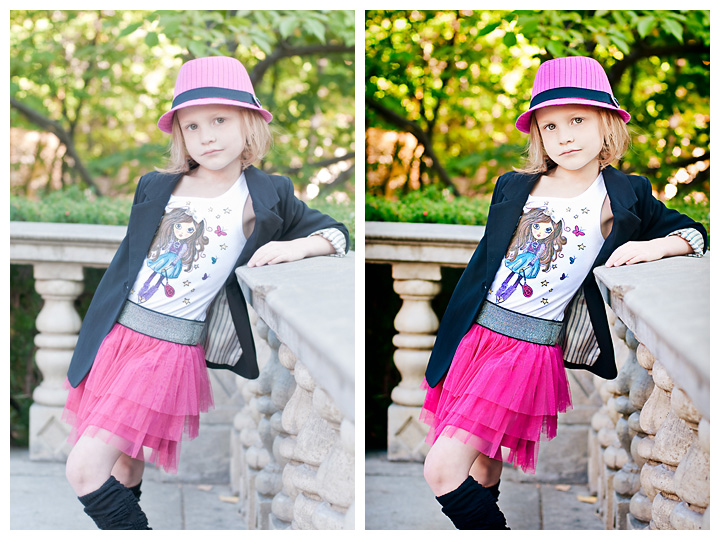
This Photoshop actions Blueprint Fan Share was submitted by Kattrina Holt of Sassafrass Photography, who loves vibrant color pop and contrast in her images.
Her step-by-step Blueprint:
- I opened the image in Lightroom 2 and warmed it up
- Then I opened it in Photoshop CS5 and used the MCP action set Bag of Tricks.
- I started with the Magical Color Finder (vivid) brush action – opacity set to 42% and applied this to the entire image except for the hair and skin.
- Then I quickly ran the Magical Clarity action at the default to add definition in the midtones, Magical Contrast at 32% for middle contrast and 50% for low contrast, and Magical Midtone Lifter at the default to brighten the photo.
- To help warm up the skin tone, I used Skin Cast Blast and turned on the Bye Bye Blueberry layer, which is part of the Magic Skin Retouching actions. And to lightly smooth the skin, I used Powder your Nose – on chin, neck, and legs- 24%
- To finish the retouching I used the Eye Doctor – this Photoshop action sharpens and lightens eyes, and brings out the catchlights.
- To add a finishing touch to the image, I used the Free Photoshop action, touch of light, touch of darkness – just used the darkness layer with my brush at 30%, and went over the jacket, skirt, hat and shirt, and the background.

Recent Posts








