
Featured Products
-
Sale!

-
Sale!

-
Sale!

-
Sale!

-
Sale!

-
Sale!

-
Sale!

-
Sale!


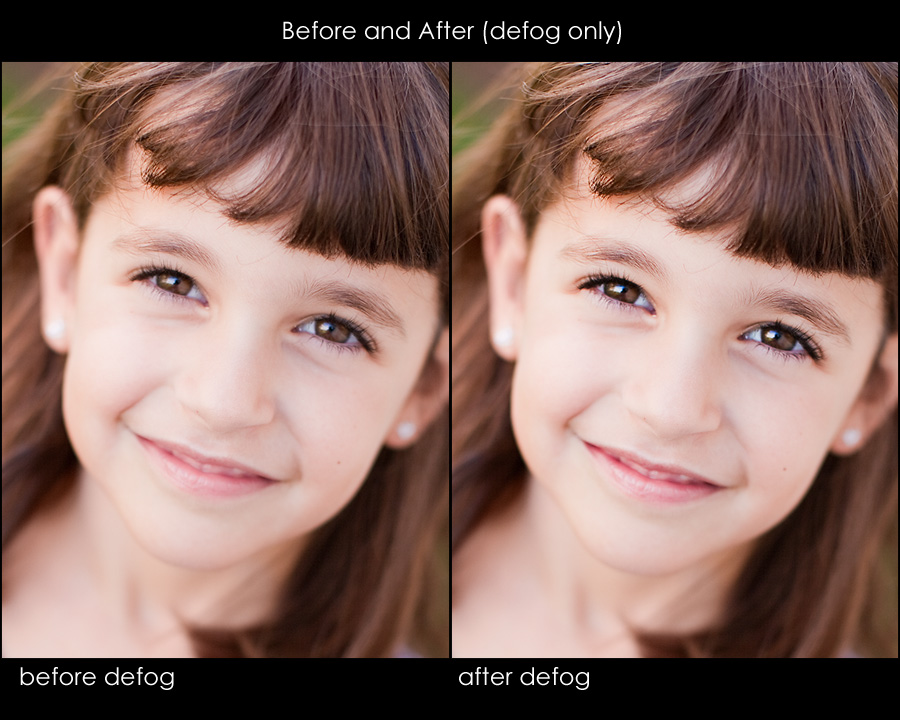
When you say the word defog to a photographer or Photoshop professional, you usually get one of three reactions:
- What is a “defog?”
- I LOVE defogging. It is the best!
- I hate defogging. It is the worst.
Like many things in the photograph industry, it can be controversial. I have gotten into many disagreements on photography forums over this simple 5 letter word.
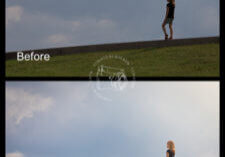
To start with, what is a “defog?” Actually let’s start with what it is not… It is not a global sharpening technique, though it often gives a similar feel of sharpening.
Defogging adds midtone contrast. It is often used in the beginning of the workflow and can make your photo look crisper. Defogs add clarity to your photo. You can accomplish a defog in Photoshop using USM (unsharp mask) set to numbers like 20 – 60 – 0, 10 – 50 – 0, 14 – 40 – 0 (for amount – radius – threshold). Other sharpening tools can be used with high radius too – such as smart sharpen and high pass. I always recommend doing these on a layer so that the opacity may be adjusted if they are too strong.
In Lightroom and Adobe Camera Raw Adobe added slider for doing defogs. It is called “Clarity.” Scott Kelby, Photoshop Guru, Author and President of NAPP, in his Lightroom 2 Live Seminar explained, “zoom in to a 1:1 view…I apply between +25 and +50 clarity to nearly every photo I process, with the only exception being photos I intentionally want to be softer and less contrasty.” He says he skips clarity on for example a baby with its mother or a closeup of an older woman with wrinkles as those you want softer.
A few things to remember if you use ACR/LR in combination with Photoshop:
- Only use clarity or defog once. It likely will be too harsh if used both places. Also make sure if you use actions that you do not manually defog and then use a defog action too.
- As for MCP Actions I have a number of different ways to defogs and they are in many action sets in different forms. If you use the Complete Workflow actions, a defog is part of the main workflow actions (it runs as part of the whole but is not adjustable as it is light – if not desired you would need to uncheck that step of the action). In the quickie collection, the defog/clarity actions are Snap, Crackle, Pop (think of these as light, medium and heavy). They use high pass and are on an adjustable layer with a mask for full control. There are also 2 more traditional defogs in the Quickie Photoshop actions, Light and Heavy Fog Fixer. In All in the Details, Binoculars and Telescope serve a similar purpose to Snap, Crackle and Pop. And in Bag of Tricks Magical Clarity will add deep midtone contrast – again with full flexibility and control.
- Remember to apply selectively instead of globally by utilizing masks as necessary.
- If your photo was shot at a high ISO and/or was underexposed and now contains graininess/noise, you may want to refrain from defogging that image. It will bring out that extra noise too. Not something that is likely desired.
So now that you know what it is, or if you already did, do you love it or hate it? If you are a firm believer in NOT defogging, please comment with why. I would love to see that side of the argument too if you can back it up and really support it.

No Comments
Leave a Comment
You must be logged in to post a comment.











Recent Posts









I do it… most of the time. I’m actually a fan of both. On most photos, I think it really helps to make that image “shine” or pop. BUT there are certain images that I feel look best without defogging (which by the way, I didn’t realize what it was called). On some images that softer look helps it feel like more of a moment, in motion, in my opinion. I also think those images that don’t call for it, that just ask to be left alone, help the ones that are defogged stand out that much more.
Loving it!
So, just to make sure I understand, Unsharp Mask in Photoshop is the same as defog? If so, then I defog almost every single picture I take. I like the clean, clear(er) way it makes the photos look …… It is usually the second thing I do, behind crop. Often, I’m done at that point ….. No sound theory from me on why, just that I like the way it makes my images look and I do it probably 90% of the time.
so do you run a defog at the beginning, then a sharpening at the end?
Jutta – yes on most photos that is exactly what I do – and I adjust the amount as needed.
Great article, Jodi! I use you Snap, Crackle, and Pop actions a lot (mostly Crackle as it seems to fit the best for nearly all my photos), and they do a great job of providing that midtone punch that really begins to bring a photo to life. I have a gripe about Lightroom, though, which keeps me from buying/using it as a primary tool. I want to be able to apply masks, but it is not supported, nor is opacity. I know the adjustment brush is used to selectively apply adjustments to exposure, contrast, sharpening, etc, but if you wanted to selectively apply presets and control the opacity of that adjustment to a photo, this is not possible, unless you know of some workaround. For example, applying an “antique-style” vignette preset (as opposed to a normal vignette) to a photo, you cannot adjust the amount of the vignette affect like you can in Photoshop. Whatever I would do in Lightroom, I know I would still have to do my final editing in Photoshop. I guess I want Lightroom to replace 80-90% of my need for Photoshop, but I don’t see that happening the way Lightroom is now. What are your thoughts?
I love it and the way your actions handle it makes them far superior. I actually love the defogging in colorburst the best. For everything else I use crackle. I have run a million actions on the same photos (yours & others) and the two mentioned earlier give the crispest but most natural look. I can’t imagine why anyone would not love the crisp clear feel it gives portraits!
Brad – there is a reason my workflow is not mainly LR – without layers and true masking it will never be. That said there is an adjustment brush – but to me it is way less effective for control – and there are still not layers.
I have all the MCP Action sets, but I defog with Crackle most of the time as a rule. My photo style is known for being clear and sharp and colorful, so this little action gives me an easy way to achieve that.
I use Clarity in LR and love it (with the exception of wrinkly ladies). 😉 Fabulous tool.
Thank you for this post. It’s so helpful. I’ve used defog because I found something about it somewhere online, but I’ve seen so little about it that I wondered whether it was an “accepted” practice.
I love defogging. It makes photos POP! 🙂
I defog, when it makes sense to, and love it! Glad the tool is there for us to use.
I say… defog! 🙂
Informative. Thank you!
Very helpful – thanks!
i defog at the beginning of my workflow and then i sharpen at the very end – either for printing or for posting to the web.
I used the defog action all the time but then I started tweaking my own with my S curves. I just felt like I had a little more control over how much and where. Am I missing out on the actions and making my work flow take longer?
I love the quickie collection & have been using crackle on most of my images as this give the extra punch & clarity I like. If I use snap, crackle or pop does this mean I shouldn’t use light de-fog as well??Do they do the same thing?
Hi! Wonderful stuff, please do keep us posted when you finally post something like that!
I together with my buddies have been reading the nice procedures on your website while quickly came up with a terrible suspicion I had not thanked you for those secrets. Those young men happened to be for that reason thrilled to see them and have now simply been tapping into these things. We appreciate you actually being indeed accommodating and then for finding this kind of terrific subjects millions of individuals are really desperate to be aware of. Our own sincere apologies for not expressing gratitude to you earlier.
I have to get across my respect for your kindness supporting persons that should have guidance on this one area. Your personal dedication to passing the message all around appears to be remarkably invaluable and has surely encouraged others like me to achieve their targets. The useful tutorial entails so much a person like me and especially to my fellow workers. Thanks a ton; from all of us.
Accomplice and Developed probably the most perfect Electronic cigarette brand names. Parade and obtain most of the best and newest in addition to Surmount Valuable Smokeless cigarettes that are offered.
I dicovered this is an informative and interesting script, so I think it is very helpful and knowledgeable. Thank you for the efforts you have made in writing this posting. I am wishing the same best work from you next time as well. actually your creative writing ability has encouraged me.
I am often to blogging and i definitely value your content material. The article has genuinely peaks my interest. I’m likely to bookmark your website and keep checking for new details.
Thanks for a marvelous posting! I genuinely enjoyed reading it, you can be a great author.I will make certain to bookmark your blog and may come back from now on. I want to encourage one to continue your great job, have a nice evening!
I like To “defog” or not to “defog” in Lightroom or Photoshop | MCP Photography Blog, great name! Really practical and very inspirational. Thanks a lot. This will help me a lot.
I love Defog and always…always do it…..if I am shooting film..of course I won’t b/c that is usually when I shoot soft portraits….it’s interesting to see how the fads & fashions change thru the years……in the 80’s and 90’s…the soft looks was worth a $mil…now it’s mostly out…and sharp and large are in…. I think the soft will make a comeback….and when I does…I will be there …..to cash in on a starving “soft” market…..thanks for your site…..
I do tend to add 15-20 clarity to almost every photo in ACR.